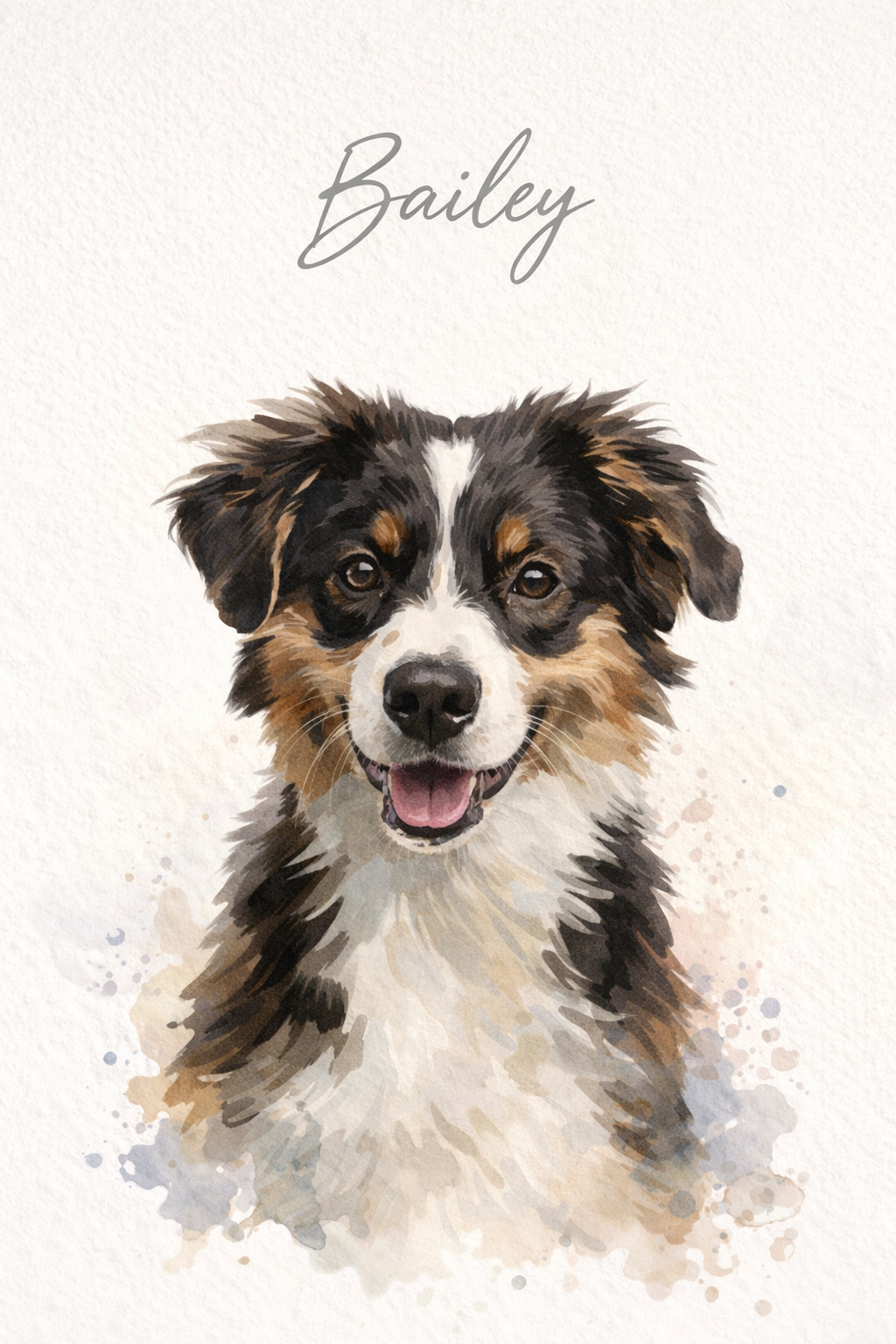
Turn a favorite photo into a watercolor pet portrait in about 60 seconds. Soft washes, textured paper effects, and gently fading edges give an everyday dog or cat photo a painted feel. Your result is a downloadable digital image, with no appointment or shipping.
Use this page to learn how the look works, compare visual styles, and decide whether it suits your photo. When you are ready to generate, the button opens Studio with the watercolor template selected. Browse first; sign in and purchase credits to create.
Template example — style reference, not a before-and-after result
How the watercolor style works
Traditional watercolor uses transparent pigment and water on paper. This template interprets that appearance digitally: lighter color washes around the coat, brushlike details near the face, and pale space around the subject. The texture belongs to the image; it is not a photograph of an original physical painting.
Your reference photos supply the visual information the AI works from. A clear face gives it more useful detail than a distant pet in a busy scene. Expect an artistic interpretation, then compare the result with your photo. Check eye color, ear shape, and distinctive patches before deciding that the portrait feels right.
The Bailey example shows the intended atmosphere: a recognizable face, loose color at the shoulders, and generous white space. It demonstrates the template’s visual direction only. It does not document a customer transformation, and your pet’s pose, coat, and final composition will differ.
Prepare your watercolor pet portrait
1. Choose a clear photo
Look for soft daylight and a face that is easy to see. Keep the ears in frame and avoid strong backlighting, motion blur, or a filter that changes coat colors. A relaxed, familiar expression usually tells you more about your pet than a dramatic angle.
2. Open the template
Continue to Studio to upload your references and review the watercolor selection. Choose photos of the same pet with consistent, natural coloring. If a marking matters, use a reference where it is clearly visible. Compare that detail with the original after generation before saving your portrait.
3. Review and download
Generate, then examine the result before saving it. Compare the face and any lettering with your references. A new generation is a separate image and uses credits; checking your inputs first helps you make a more deliberate choice.
Watercolor vs oil vs pencil sketch
These are comparisons of visual media, not a promise that every medium is available as a SoulPaw template. Browse the current catalog of 56 portrait templates to see the styles you can actually select.
Visual differences between portrait media
Medium
Visual character
Consider it when
Watercolor
Transparent washes, soft edges, airy backgrounds
You want a gentle, informal portrait with breathing room.
Oil painting
Richer color, heavier texture, deeper contrast
You prefer a more substantial, traditional painted appearance.
Pencil sketch
Visible lines, tonal shading, restrained color
You enjoy drawing and want attention on shape and expression.
Paper, print and file formats
Your download is a JPEG digital file. SoulPaw does not send paper, canvas, a frame, or an original painting. You can keep the image on your phone, share it privately, or arrange a print yourself. Save the original download before making cropped or compressed copies.
For a print, first check the downloaded file’s pixel dimensions. Ask your chosen printer what size those dimensions support and inspect its crop preview so ears or lettering stay inside the frame. Matte or lightly textured paper can complement the soft appearance; a small proof helps you judge color before ordering a larger version.
The paper texture is already part of the artwork, so very coarse physical paper may compete with it. Leave room for a mount if you like the airy border. The final file, your crop, and your printer determine the result; there is no single print size that suits every generated image.
Questions before you create
How do I create a watercolor pet portrait from my photo?
Open the watercolor template in Studio, upload clear reference photos, and review your choices before generating. An account and available credits are required to generate an image. Generation takes about 60 seconds. Inspect the finished portrait, especially the eyes and markings, before downloading the digital file.
Will the portrait keep my pet’s markings?
Your photos guide the face, coat colors, and distinctive markings. AI can reinterpret small details, so identical reproduction is not guaranteed. Use evenly lit references and check features that matter to you, such as a white chest patch, eyebrow markings, or the shape of an ear.
Can I include my pet’s name?
The example includes Bailey as part of the style reference. Template generation does not provide a separate name field. Check any lettering in the result; if you want a specific name, add it with an image editor after downloading. Review the finished text before ordering a print.
Do you send a framed print or an original painting?
No. SoulPaw provides an AI-generated digital JPEG file. A frame, physical paper, painting, and shipping are not included. You can take the downloaded file to a printer of your choice; suitable print sizes depend on the actual file dimensions and the printer’s requirements.
Can I try the same photos in another style?
Yes. Browse the current catalog and choose another available template in Studio. Each successful image uses one credit, so another generated version uses another credit. Compare the previews first, and check the pricing page for current credit packs and subscriptions before starting several versions.